



Executive Summary
- Provides a comprehensive suite for real-time DOM/CSSOM inspection and live manipulation of the browser rendering pipeline.
- Features advanced Performance and Network panels essential for diagnosing Core Web Vitals bottlenecks and resource contention.
- Includes integrated Lighthouse auditing and Memory profiling to identify memory leaks and JavaScript execution inefficiencies.
What is Chrome DevTools?
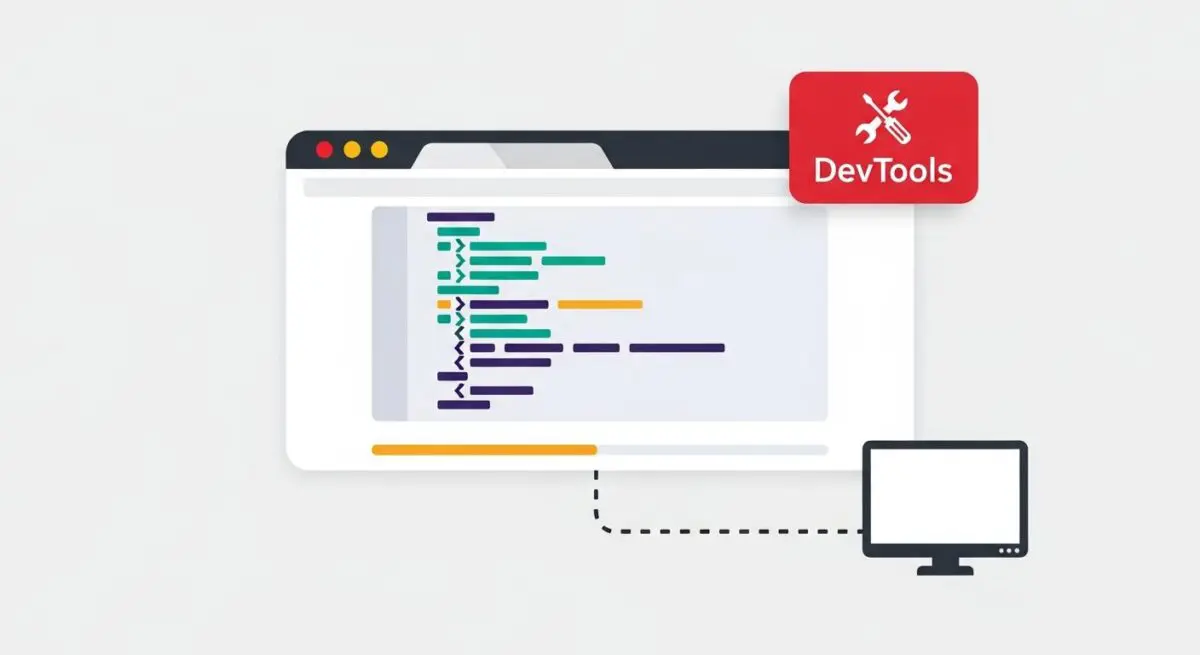
Chrome DevTools is a sophisticated suite of web developer tools integrated directly into the Google Chrome browser. It provides developers and performance architects with deep access to the internal state of the browser’s rendering engine and JavaScript virtual machine. By utilizing these tools, we can inspect the Document Model (DOM), modify Cascading Style Sheets (CSS) in real-time, and debug complex JavaScript execution flows without leaving the browser environment.
Beyond simple debugging, Chrome DevTools serves as the primary interface for performance profiling. It allows for the capture of detailed trace logs that map out the entire lifecycle of a page load, from initial DNS lookup and TCP handshake to the final paint events. This granular visibility is essential for identifying render-blocking resources, long tasks that delay interactivity, and layout shifts that degrade user experience.
The Real-World Analogy
Think of Chrome DevTools as a high-tech diagnostic scanner used by a Formula 1 pit crew. While the car (the website) is racing around the track (the user’s browser), the crew can plug in their sensors to see exactly how the engine is performing, check the temperature of the tires, and identify even the smallest mechanical friction. Just as the scanner allows the crew to make precise adjustments to win the race, DevTools allows performance engineers to see under the hood of a website to fix bottlenecks that are invisible to the naked eye.
Why is Chrome DevTools Critical for Website Performance and Speed Engineering?
Chrome DevTools is the definitive environment for measuring and optimizing Core Web Vitals (CWV). The Performance panel enables engineers to record a profile of the page load, revealing the exact timing of Largest Contentful Paint (LCP) and identifying the specific resources—such as unoptimized images or heavy JavaScript bundles—that delay it. Furthermore, the Network panel provides a waterfall visualization of resource loading, allowing for the identification of high-latency server responses and inefficient caching headers.
For modern interactivity metrics like Interaction to Next Paint (INP), the DevTools console and performance recorder allow us to isolate long-running scripts that block the main thread. By simulating various network conditions (e.g., Fast 3G) and CPU throttling, we can observe how a site performs on lower-end mobile devices, which is critical for ensuring a performant experience across diverse user demographics and improving search engine rankings in an AI-driven search landscape.
Best Practices & Implementation
- Utilize the Coverage Tab: Identify unused JavaScript and CSS bytes to reduce the payload size and minimize the time spent in the browser’s parsing and compilation phases.
- Implement CPU and Network Throttling: Always test performance using ‘6x CPU slowdown’ and ‘Fast 3G’ network profiles to simulate real-world mobile constraints rather than ideal development environments.
- Analyze the Main Thread: Use the Performance panel’s flame chart to locate ‘Long Tasks’ (tasks exceeding 50ms) and refactor them into smaller asynchronous chunks to maintain responsiveness.
- Audit with Lighthouse: Run automated audits within the Lighthouse tab to generate a baseline performance score and receive actionable suggestions for improving accessibility and SEO.
- Monitor Layout Shifts: Use the ‘Experience’ section in the Performance trace to identify specific DOM elements causing Cumulative Layout Shift (CLS) and apply fixed dimensions.
Common Mistakes to Avoid
One frequent error is performing audits while browser extensions are active; extensions can inject their own scripts and styles, skewing performance data. Always use Incognito mode for profiling. Another mistake is relying solely on ‘Lab Data’ from a high-end desktop machine without accounting for the simulated constraints that reflect the actual hardware used by the majority of the target audience.
Conclusion
Chrome DevTools is an indispensable diagnostic powerhouse that enables precise engineering of the critical rendering path and resource delivery strategies to maximize site speed.