



Key Points
- The “Submitted URL has crawl issue” status often stems from partial indexing failures where primary HTML is fetched but rendering resources timeout silently.
- Mitigate silent rendering drops by extending server-side Keep-Alive timeouts and increasing PHP execution limits to accommodate complex DOM constructions.
- Validate fixes via reverse DNS log audits and throttle testing to ensure WAF rules and edge caching layers are not misidentifying Googlebot IP ranges.
Table of Contents
The Core Conflict: Understanding the Crawl Issue
According to recent technical SEO studies, nearly a fifth of URLs marked with a crawl issue in Search Console stem from silent timeouts. In these cases, the server closes the connection before the DOM is fully transmitted to the Google Inspection Tool.
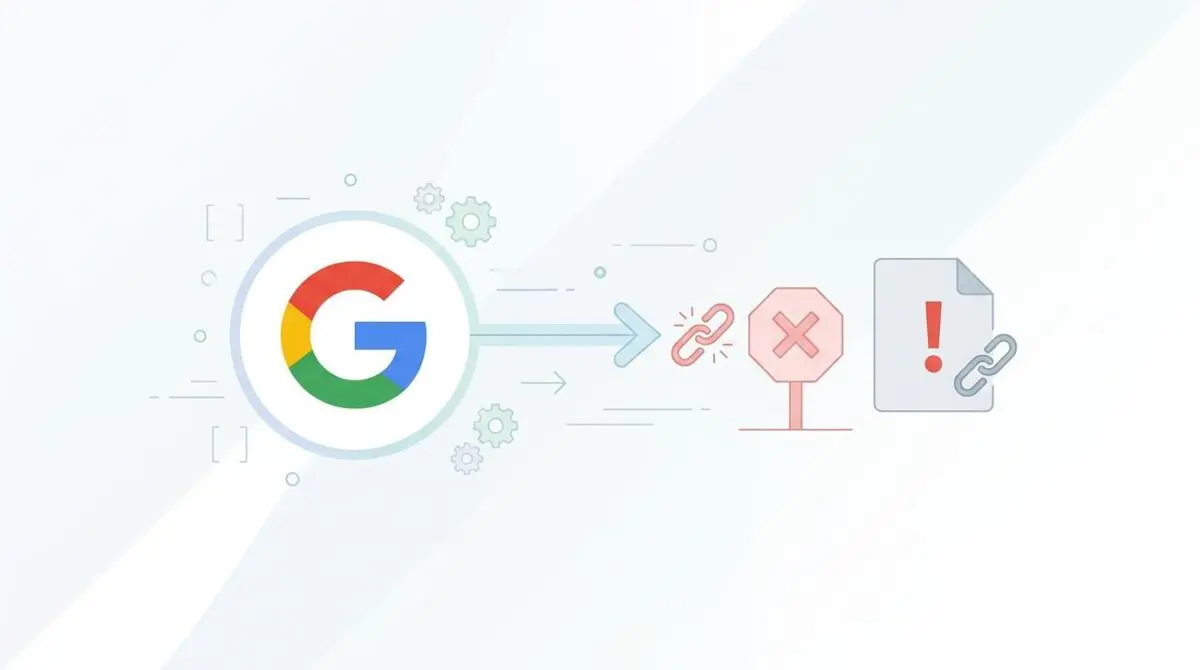
When Google Search Console reports a “Submitted URL has crawl issue” without a standard HTTP error code, engineers are often left hunting ghosts. This non-specific error indicates that Googlebot attempted to fetch a sitemap URL but encountered a failure outside the standard 404 or 500 ranges.
In the modern SEO environment, this error is frequently linked to partial indexing anomalies. The primary HTML is fetched successfully, but critical rendering resources like CSS, JavaScript, or API endpoints are blocked or time out.
This prevents the Google Inspection Tool from building a complete Document Object Model during the rendering phase. Consequently, this creates a massive bottleneck for your crawl budget as the crawler wastes time on incomplete page loads.
Google may repeatedly attempt to crawl the problematic URL, consuming server resources without successfully indexing the content. The GSC Page Indexing report flags these URLs, while the URL Inspection tool shows a successful crawl but a failed rendering phase.
In raw server logs, you will observe Googlebot IP addresses initiating a GET request that results in a TCP reset. Alternatively, you might see a 200 status code followed by an unusually low byte count.
This indicates the connection was severed before payload delivery completed. This tiny payload drop is the hallmark signature of a silent server-side timeout. Identifying these specific patterns is the first step toward restoring proper indexation.
Diagnostic Checkpoints for Crawl Failures
Resolving this ambiguity requires a systematic approach to identify desynchronizations across your technology stack. You must isolate whether the failure is happening at the network layer, the edge caching layer, or the application backend.
Diagnostic Checkpoints
Resource-Level Socket Timeouts
Socket failure during secondary resource fetching.
Aggressive WAF/Bot Management False Positives
Firewall silently drops Googlebot packets without HTTP error.
Asynchronous Rendering Deadlocks
Rendering hangs due to unresolved asynchronous events.
MTU Path Discovery Issues (Fragmentation)
Packet fragmentation causes silent data loss on crawl.
You must review your Search Console Index Coverage report to accurately isolate the affected URL clusters before diving into server diagnostics. Grouping the affected URLs by directory or template type often reveals the underlying architectural flaw.
Server and Network Layer Bottlenecks
Resource-level socket timeouts occur when the server accepts the initial request but fails to maintain the socket connection for secondary resource fetches. This often happens when the server Keep-Alive timeout is shorter than the time required for the backend to process dynamic elements.
The result is a silent failure during the rendering phase, leaving Googlebot with an incomplete page. At the network level, Maximum Transmission Unit path discovery issues can also trigger this error.
When the MTU size on the server exceeds what the network path can handle without fragmentation, large HTML packets are dropped silently by intermediate routers. This specifically affects Google crawling infrastructure in certain geographic regions.
These drops are particularly common in environments utilizing poorly configured GRE tunnels or VPNs.
Edge and Application Layer Blocks
Web Application Firewalls or Edge Security layers frequently misidentify aggressive crawl frequencies as a DDoS attack. If the WAF drops the packet without sending a 403 Forbidden header, GSC records a generic crawl issue.
No HTTP response was received for Google to categorize the failure accurately, resulting in the ambiguous error message. Furthermore, asynchronous rendering deadlocks in modern front-ends can cause the crawl to hang indefinitely.
The rendering engine may enter an infinite loop or wait for a third-party API that never responds. Because the Web Rendering Service has a hard timeout, a missing load event will flag a crawl issue.
The Engineering Resolution Roadmap
To eliminate the crawl issue error, you must implement a multi-layered resolution strategy. This involves optimizing server configurations, adjusting firewall rules, and ensuring seamless resource delivery.
Engineering Resolution Roadmap
Execute GSC Live Test and Render Comparison
Run the ‘Live Test’ in GSC URL Inspection. Compare the ‘Crawl’ tab against the ‘Screenshot’ tab. If the screenshot is blank or missing CSS, check the ‘More Info’ > ‘Page Resources’ section to identify specific URLs that are ‘Blocked’ or ‘Other error’.
Audit Server-Side Keep-Alive and Timeouts
Modify the NGINX or Apache configuration to increase ‘keepalive_timeout’ to 75s and ‘proxy_read_timeout’ to 300s. In WordPress, ensure ‘max_execution_time’ in php.ini is set to at least 60-120 seconds for heavy rendering tasks.
Verify Googlebot via Reverse DNS
Check server logs for IP addresses claiming to be Googlebot. Use the command ‘host [IP_ADDRESS]’ to ensure it resolves to ‘googlebot.com’. If legitimate IPs are returning 0-byte responses, whitelist the entire Google IP range in your WAF/Cloudflare dashboard.
Flush Object Cache and CDN Edge
Clear the WordPress Object Cache (Redis/Memcached) and purge the Global CDN cache. Stale fragments in the cache can cause the server to serve a partial HTML skeleton that triggers the crawl issue status.
The first step is always executing a Live Test in the GSC URL Inspection tool to compare the crawled HTML against the rendered screenshot. If the screenshot is blank or missing critical styling, you immediately know the issue lies in resource loading.
This isolates the problem to the rendering phase rather than the initial HTML payload. Auditing your server-side Keep-Alive and timeout directives ensures that complex DOMs have the necessary time to compile and transmit.
Modifying NGINX or Apache configurations to increase proxy read timeouts prevents the server from prematurely closing the connection. This is especially critical for heavy e-commerce or dynamic publishing platforms.
Resolution Execution: Adjusting Server Directives
Executing the fix requires direct intervention at the server and application levels. You must carefully manipulate the headers being sent to Googlebot to guarantee a stable connection.
Before modifying firewall rules, ensure you are accurately verifying Googlebot via reverse DNS to avoid whitelisting spoofed IP addresses. Once verified, you can safely whitelist the legitimate Google IP ranges in your Cloudflare or WAF dashboard.
This prevents security plugins from dropping packets during high-frequency crawl events. You must also ensure your origin server is configured to handle the extended connection times.
Fixing via WordPress and PHP
In a WordPress environment, high-latency plugins or complex page builders can trigger deep database queries that exceed PHP execution limits. This causes the server to terminate the process mid-stream, resulting in a silent data drop.
To resolve this, you must dynamically extend the memory limit and Keep-Alive headers specifically for Googlebot requests.
Fixing via PHP Application Layer
Add the following directive to your application initialization phase to intercept crawler user agents and enforce extended timeout rules.
add_action('init', function() { if (strpos($_SERVER['HTTP_USER_AGENT'], 'Googlebot') !== false) { @ini_set('memory_limit', '512M'); @set_time_limit(120); header('Connection: Keep-Alive'); header('Keep-Alive: timeout=75, max=100'); } });This snippet intercepts the initialization phase and checks the User-Agent string for Googlebot. If detected, it allocates additional memory and extends the execution time limit to prevent premature termination.
It also forces the Keep-Alive headers, ensuring the socket remains open long enough for the rendering service to fetch all secondary resources.
Validation Protocol and Edge Cases
After applying the server adjustments, you must rigorously validate the connection integrity. Relying solely on the Search Console dashboard is insufficient due to data processing delays.
You need real-time feedback to confirm the network path is clear.
Validation Protocol
- Run curl with Googlebot UA string to verify correct header and status code integrity.
- Use Chrome DevTools Network tab with Slow 3G throttling to identify latent resource failures.
- Execute the Rich Results Test tool to confirm the final DOM is fully constructed and rendered.
You can verify the fix by running a cURL command with the Googlebot User-Agent string to ensure the headers are correct and no silent drops occur.
Next, use the Chrome DevTools Network tab with throttling set to slow 3G to simulate the rendering environment and identify any latent resource failures.
Execute the Rich Results Test tool, which utilizes the exact same rendering engine as Googlebot, to confirm the final DOM is fully constructed.
Be aware of highly specific edge cases that can mimic standard timeouts. A rare conflict occurs when Cloudflare Early Hints are enabled alongside an NGINX server using the Brotli compression module.
Googlebot may receive the early hints, but the compressed stream for the main HTML payload fails the checksum. This happens due to a race condition in the compression buffer, resulting in a crawl issue with no clear error code.
Disabling Early Hints temporarily can help isolate this specific anomaly. Always monitor the raw server logs during the validation phase to catch these silent failures.
Autonomous Monitoring and Prevention
Preventing the recurrence of the crawl issue status requires proactive infrastructure observability. Implement a real-time log monitoring pipeline using tools like Logstash or Datadog.
Configure these pipelines to alert specifically on status 200 requests from Googlebot agents where the byte count falls below a predefined threshold.
This instantly flags silent rendering drops before they impact your indexation coverage. Regularly validate sitemap integrity using automated scripts that cross-reference sitemap URLs with indexing metadata results.
At Andres SEO Expert, we engineer these exact automated pipelines to monitor entity integrity at the enterprise level.
By treating search engine crawlers as first-class API consumers, you can guarantee maximum crawl efficiency and prevent silent indexing failures.
Proactive monitoring ensures that server updates or plugin additions do not inadvertently recreate the timeout conditions.
Conclusion
Resolving ambiguous crawl issues requires looking past the surface-level GSC reports and analyzing the raw server-to-crawler handshake.
By extending timeouts, validating bot traffic, and eliminating asynchronous rendering deadlocks, you secure your technical foundation.
A stable rendering pipeline is non-negotiable for maintaining high visibility in modern search environments.
Navigating the intersection of technical SEO, server architecture, and generative search requires a precise roadmap. If you need to future-proof your enterprise stack, resolve deep-level crawl anomalies, or implement AI-driven SEO automation, connect with Andres at Andres SEO Expert.
Frequently Asked Questions
What does “Submitted URL has crawl issue” mean in Google Search Console?
This is a non-specific error indicating that Googlebot attempted to crawl a URL listed in your XML sitemap but failed due to reasons outside standard HTTP error codes, such as silent server timeouts or connection resets.
What causes a silent timeout during a Google crawl?
Silent timeouts occur when a server closes a connection before the DOM or critical rendering resources like CSS and JavaScript are fully transmitted. This often happens if server Keep-Alive settings are shorter than the time required for the backend to process dynamic elements.
How do I fix crawl issues related to server configuration?
To resolve these issues, you should increase the ‘keepalive_timeout’ to 75 seconds and ‘proxy_read_timeout’ to 300 seconds in NGINX or Apache. In WordPress environments, ensure the ‘max_execution_time’ in php.ini is at least 60-120 seconds.
Why is Googlebot seeing a 0-byte payload or 200 status with no content?
This is typically a hallmark of a silent server-side timeout or an aggressive WAF. The server sends a 200 OK status but severs the connection before the payload is delivered, often due to security layers misidentifying crawl frequency as a DDoS attack.
How can I verify if my firewall is blocking Googlebot?
Check your server logs for IP addresses resulting in TCP_RESET errors. Use a reverse DNS lookup to confirm the IPs resolve to ‘googlebot.com’. If verified, whitelist these legitimate Google IP ranges in your WAF or Cloudflare dashboard to prevent packet dropping.
What tools should I use to validate a crawl issue fix?
Use the Google Search Console ‘Live Test’ to compare the crawl results with the rendered screenshot. Additionally, execute the Rich Results Test to confirm the final DOM is fully constructed and use cURL with a Googlebot User-Agent to check header integrity.