


Key Points
- The absence of the Google Discover Performance Report in GSC, despite active GA4 traffic, often stems from a failure to meet proprietary impression thresholds or technical image dimension requirements.
- Referrer stripping via aggressive caching or misconfigured edge redirects can cause GA4 to misattribute Discover traffic while GSC fails to log the sessions entirely.
- Injecting the max-image-preview:large meta directive and enforcing a strict 1200px featured image rule are mandatory engineering steps to restore Discover feed visibility.
Table of Contents
The Core Conflict
According to recent technical SEO data, publishers implementing high-resolution images combined with the ‘max-image-preview:large’ directive experience significantly higher click-through rates in Discover feeds. This metric underscores the critical nature of the Google Discover Performance Report. This specialized analytics interface within Google Search Console aggregates data specifically from the Discover feed.
Unlike traditional search, this AI-driven, query-less content delivery system relies heavily on entity-graph relevance and strict visual technical requirements. Failure to appear in this report despite traffic in Google Analytics 4 (GA4) indicates a severe technical reporting blackout.
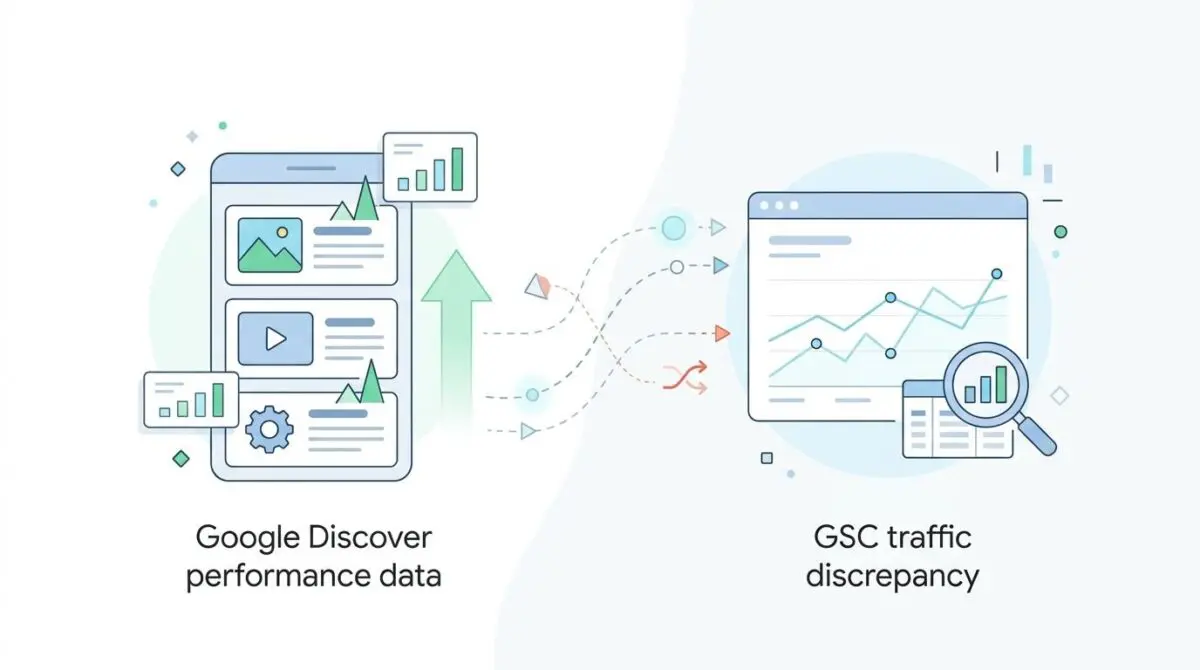
Your content is likely being surfaced via app-referrals, which GA4 tracks successfully. However, it fails to qualify for the high-resolution Discover UI tracked by GSC. This discrepancy creates a massive strategic blind spot for SEO teams.
Discover now accounts for a significant share of mobile-first organic reach, especially in the era of Generative Engine Optimization (GEO). When GSC data goes dark, you lose the ability to measure how effectively Google’s Recommender Systems are selecting your content. You are effectively flying blind while consuming valuable server resources.
The primary symptom is the total absence of the ‘Discover’ tab under the ‘Performance’ section in GSC. This occurs even when GA4 reports traffic from ‘discover.google.com’ or Android app referrers. Additionally, server logs may show heavy hits from the ‘Googlebot-Image’ user-agent on featured images without corresponding GSC impressions.
Another symptom is a sharp drop in traffic in GSC that does not mirror the session stability in GA4. This often follows a Google Core Update, such as the February 2026 Discover-specific rollout. Diagnosing this requires a deep dive into your server architecture, image rendering pipelines, and HTTP headers.
Diagnostic Checkpoints
Resolving a desynchronization between server logs, GA4, and GSC requires a structured diagnostic approach. This error is rarely a single point of failure. It is usually a cascading issue across the server, edge, or application layers.
Diagnostic Checkpoints
Image Dimension Non-Compliance (1200px Rule)
Featured images must be at least 1200px wide.
Missing max-image-preview:large Meta Directive
Robots meta directive required for high-res feed eligibility.
GA4 Referrer Stripping & Misattribution
Referrer loss via redirects hides Discover traffic in GA4.
GSC Data Freshness & Logging Bugs
Internal Google bugs cause delays in Discover report logging.
At the application layer, WordPress themes and plugins frequently cause image dimension non-compliance. Hard-cropping featured images to standard sizes below 1200px immediately disqualifies the asset from the large image feed. Official search guidelines require featured images to be at least 1200px wide to qualify for the high-resolution feed.
Furthermore, missing meta directives compound the issue. The ‘max-image-preview:large’ tag is a hard technical prerequisite. Without it, Googlebot is forced to display low-resolution thumbnails, plummeting your Click-Through Rate (CTR) and overall feed visibility.
At the server and edge layers, GA4 referrer stripping is a primary culprit for data mismatches. Aggressive caching plugins or misconfigured NGINX redirect rules can strip the ‘android-app://’ referrer headers. This causes GA4 to misattribute the traffic while GSC completely ignores the session due to broken API handshakes.
Finally, internal GSC data freshness and logging bugs must be considered. Google has confirmed recurring internal data logging issues where Discover data is delayed. The report only activates when the property reaches a minimum threshold of impressions, and stale XML sitemaps cached by Varnish can severely delay this threshold validation.
Engineering Resolution Roadmap
Restoring the Google Discover Performance Report requires precise technical execution. You must align your application’s output with Google’s strict rendering expectations. This is not a content issue; it is a server and payload issue.
Engineering Resolution Roadmap
Inject max-image-preview:large Robots Tag
Verify the presence of the tag in the <head>. If missing, add the following PHP snippet to your WordPress child theme’s functions.php or use a code snippets plugin: add_action(‘wp_head’, function(){ echo ‘<meta name=”robots” content=”max-image-preview:large” />’; }, 1);
Audit and Upscale Featured Images
Ensure all featured images are at least 1200px wide with a 16:9 aspect ratio. Use the ‘Media’ settings in WordPress to increase the ‘Large’ size threshold and use the ‘Regenerate Thumbnails’ plugin to update existing assets.
Validate via GSC Live Test
Enter a high-traffic URL into the GSC ‘URL Inspection’ tool and click ‘Live Test’. Under ‘Availability’, ensure the ‘Robots meta tag’ specifically lists ‘max-image-preview:large’ and that the ‘Googlebot-Image’ can successfully crawl the hero image.
Check GA4 Source/Medium for Discover Specifics
In GA4, go to Reports > Acquisition > Traffic Acquisition. Filter by ‘Session source/medium’ and look for ‘discover.google.com / referral’. If traffic exists here but the GSC tab is missing, the issue is likely a GSC logging lag or a threshold deficiency.
Injecting the correct robots meta tag is the foundational step. This directive must be present in the initial HTML payload. Relying on client-side rendering for this tag can lead to race conditions with Googlebot, resulting in indexing failures.
Auditing and upscaling featured images requires bulk processing. You cannot simply stretch small images via CSS; the actual source file must meet the 1200px requirement. This often requires regenerating thumbnails across the entire media library to ensure historical content regains eligibility.
Validating the fix via the GSC Live Test ensures the edge layer is not modifying your HTML headers. You must confirm that Googlebot-Image can successfully extract the hero image without encountering a 403 Forbidden error from your Web Application Firewall (WAF). WAFs frequently block image crawlers if they lack proper user-agent whitelisting.
Cross-referencing GA4 source and medium data provides the final confirmation. Filtering for ‘discover.google.com / referral’ allows you to isolate the exact sessions that GSC is failing to log. If the traffic exists in GA4 but not GSC, you have isolated the issue to a reporting threshold or logging lag.
Resolution Execution
Implementing the fix at the WordPress layer requires modifying the core robots output. Do not rely on bloated SEO plugins if they are misconfigured or conflicting with your theme. Hardcoding the directive ensures absolute compliance.
Fixing via WordPress Functions
The most robust method to ensure the ‘max-image-preview:large’ directive is served globally is via a direct PHP filter. This bypasses plugin-level toggles and injects the directive directly into the WordPress robots API.
add_filter( 'wp_robots', function( $robots ) { $robots['max-image-preview'] = 'large'; return $robots; });Once deployed, you must clear all server-side object caches, such as Redis or Memcached. You must also purge your edge cache on Cloudflare or Fastly. This guarantees that the updated HTML headers are delivered to Googlebot immediately upon the next crawl.
If you are utilizing an NGINX reverse proxy, verify that your server blocks are not stripping the ‘X-Robots-Tag’ from the HTTP headers. Sometimes, server-level configurations override application-level PHP outputs. A quick curl command can verify the final payload delivered to the client.
Validation Protocol & Edge Cases
Deploying the fix is only half the battle. You must rigorously validate the implementation from the perspective of the crawler. Do not assume the fix is live just because you see it in your local browser.
Validation Protocol
- Use ‘curl -I [URL]’ to check the HTTP headers for ‘X-Robots-Tag: max-image-preview:large’.
- Open Chrome DevTools > Network Tab and filter for ‘google-analytics’ to ensure the ‘dr’ parameter contains ‘discover.google.com’.
- Run the URL through the ‘Rich Results Test’ to ensure the Article schema references an image URL that is at least 1200px wide.
- Monitor the GSC ‘Search Status Dashboard’ for known Discover reporting bugs.
Edge cases frequently disrupt even perfect application-layer configurations. In a Headless WordPress architecture utilizing Next.js, the frontend may fail to pass the meta tag to the client-side rendered head. You must ensure your GraphQL queries explicitly fetch and render the SEO metadata during the build step.
Image optimization networks introduce another layer of complexity. If you are using Cloudflare Images or Polish, the Edge Worker might automatically resize your 1200px image to a mobile-optimized 600px version. When the ‘Googlebot-Image’ crawler requests the asset, it receives the disqualified size.
This effectively bans the site from the ‘Large Image’ feed. You must configure your CDN rules to bypass image resizing for the ‘Googlebot-Image’ user-agent. Failing to do so will permanently block your content from triggering the GSC Discover report.
Autonomous Monitoring & Prevention
Preventing future Discover data blackouts requires proactive monitoring. Manual audits are insufficient for enterprise-scale publishing. You must build safeguards into your deployment pipeline.
Implement an automated CI/CD pipeline check that validates image dimensions before deployment. You can also integrate a pre-publish checklist in WordPress that blocks publication if the featured image is under 1200px. This prevents human error from compromising your technical SEO architecture.
Server log analysis is critical for monitoring entity integrity. Utilize tools like Logstail or Screaming Frog Log File Analyser to track ‘Googlebot-Image’ crawl frequency. If the crawler is hitting 403 or 404 errors on your featured images, your Discover traffic will collapse.
At Andres SEO Expert, we engineer custom API alerts and Make.com pipelines to monitor these exact technical thresholds. Automated entity integrity monitoring is the ultimate way to safeguard your AI search visibility at the enterprise level. We ensure your server infrastructure constantly communicates correctly with Google’s ingestion engines.
Conclusion
Restoring the Google Discover Performance Report requires a holistic understanding of server logs, image rendering pipelines, and Google’s proprietary thresholds. By aligning your technical stack with these strict requirements, you eliminate data blackouts and restore accurate GA4 attribution.
Do not let server misconfigurations rob you of valuable Discover traffic. Validate your headers, enforce strict image dimension rules, and monitor your edge caching layers rigorously.
Navigating the intersection of technical SEO, server architecture, and generative search requires a precise roadmap. If you need to future-proof your enterprise stack, resolve deep-level crawl anomalies, or implement AI-driven SEO automation, connect with Andres at Andres SEO Expert.
Frequently Asked Questions
Why is the Google Discover report missing from my Google Search Console?
The Discover performance report only appears in Google Search Console (GSC) once your property reaches a minimum impression threshold. If traffic is appearing in GA4 but not GSC, it usually indicates your content is non-compliant with high-resolution image requirements or the ‘max-image-preview:large’ meta directive.
What are the technical image requirements for Google Discover eligibility?
To qualify for the high-resolution Discover feed, featured images must be at least 1200px wide. Additionally, you must provide the ‘max-image-preview:large’ robots meta tag to give Google permission to display these assets in the feed UI.
How do I implement the max-image-preview:large directive in WordPress?
The most effective method is adding a PHP filter to your functions.php file: add_filter('wp_robots', function($robots) { $robots['max-image-preview'] = 'large'; return $robots; });. This ensures the meta tag is served globally via the WordPress robots API.
Can a CDN or WAF cause a Google Discover data blackout?
Yes. If your CDN (like Cloudflare) automatically resizes images to mobile-optimized widths below 1200px, or if your Web Application Firewall (WAF) blocks the ‘Googlebot-Image’ user-agent, your site will be disqualified from the high-resolution Discover feed.
How can I verify if Googlebot is correctly crawling my Discover-eligible images?
Use the GSC ‘URL Inspection’ tool and click ‘Live Test’. Check the ‘Availability’ section to ensure the ‘max-image-preview:large’ robots tag is detected, and review your server logs to confirm that ‘Googlebot-Image’ is fetching your hero images without 403 or 404 errors.
Why does GA4 show Discover traffic while GSC remains empty?
This discrepancy occurs when GA4 successfully captures ‘android-app://’ referrers for content surfaced in lower-resolution feeds, while GSC only logs performance data once the specific technical requirements for the high-res Discover UI are met.