



Executive Summary
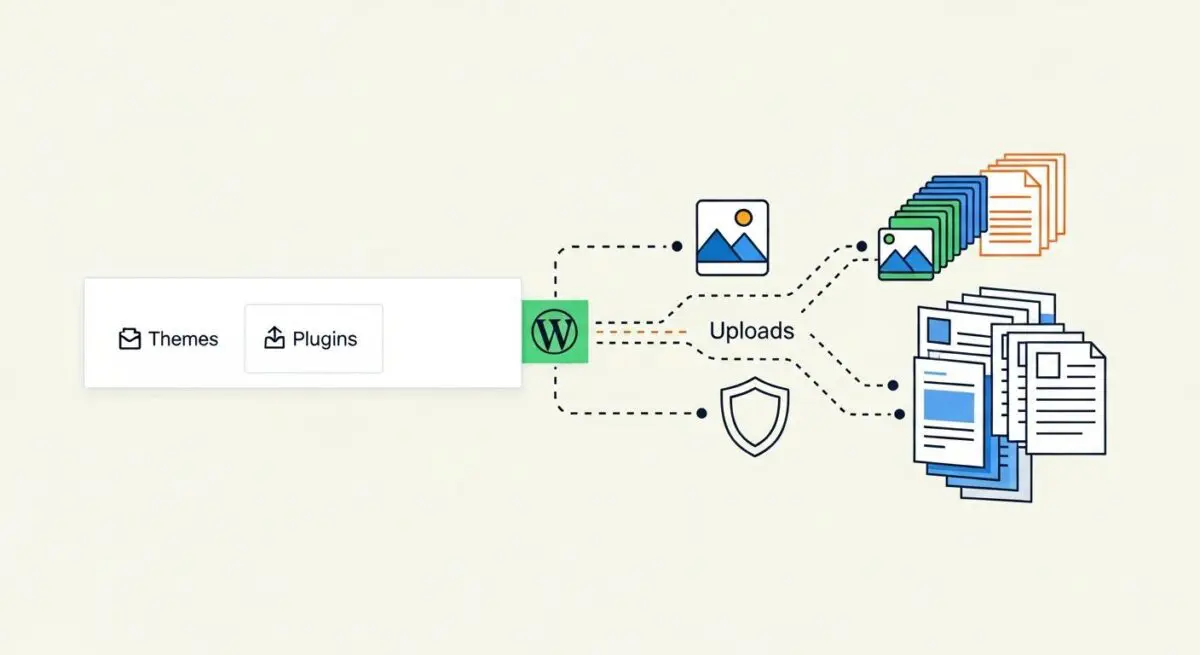
- The wp-content directory serves as the primary repository for all user-defined assets, including plugins, themes, and media uploads, isolating them from the WordPress core.
- Architectural customization of this directory via wp-config.php constants is a standard practice for security obfuscation and advanced deployment workflows.
- Scalability in high-availability environments requires offloading the uploads subdirectory to object storage or shared file systems to ensure data consistency across nodes.
What is WP-Content Directory?
The wp-content directory is a fundamental component of the WordPress file system architecture, located at the root of a standard installation. Its primary technical purpose is to serve as a centralized repository for all user-supplied content, including themes, plugins, and media uploads. By design, WordPress separates its core application logic—housed in wp-admin and wp-includes—from the site-specific assets stored in wp-content. This separation of concerns is critical for maintaining the integrity of the CMS during core updates, as it allows the core software to be overwritten without affecting the unique customizations and data of the specific website.
Within the wp-content directory, several standard subdirectories exist: /plugins/, which contains the code for extended functionality; /themes/, which houses the design templates; and /uploads/, where all media files and generated metadata are stored. Additionally, advanced configurations may include a /mu-plugins/ (Must-Use) directory for scripts that are automatically loaded before standard plugins. From a server-side perspective, the wp-content directory is often the most dynamic part of the file system, requiring specific attention regarding file permissions, security hardening, and storage optimization. Developers can redefine the location and name of this directory using the WP_CONTENT_DIR and WP_CONTENT_URL constants in the wp-config.php file, a technique often employed to obscure the default WordPress footprint.
The Real-World Analogy
To understand the wp-content directory, imagine a high-end professional kitchen. The kitchen structure, the plumbing, the gas lines, and the industrial ovens represent the WordPress Core (wp-admin and wp-includes). These are the essential tools provided by the building owner. However, the specific ingredients, the chef’s personal knife set, the unique spice blends, and the custom plating dishes are kept in a specific, dedicated pantry. This pantry is the wp-content directory. If the building owner decides to upgrade the ovens or repair the plumbing (a WordPress core update), the chef’s unique ingredients and tools remain untouched in the pantry. Without the pantry, the kitchen is just a generic space; with it, the kitchen becomes a specific restaurant with its own unique menu and flavor profile.
How WP-Content Directory Impacts Server Performance & Speed Engineering?
The wp-content directory is the primary driver of server-side resource consumption and front-end load times. Because it houses all active plugins and themes, the efficiency of the code within these subdirectories directly dictates the Time to First Byte (TTFB). Poorly optimized plugins can lead to excessive database queries and high PHP execution times. Furthermore, the /uploads/ directory often becomes the largest consumer of disk space. In high-traffic environments, serving large, unoptimized images directly from the local server can saturate network bandwidth and increase latency. Speed engineering strategies often involve offloading the /uploads/ directory to an external Object Storage provider (like Amazon S3 or Google Cloud Storage) and delivering those assets via a Content Delivery Network (CDN) to reduce the load on the origin server.
From a caching perspective, the wp-content directory is where most static assets reside. Efficiently managing Cache-Control headers for the /themes/ and /uploads/ directories ensures that browsers can store CSS, JavaScript, and images locally, significantly improving subsequent page load speeds. Conversely, if the wp-content directory is bloated with unused themes and plugins, it increases the attack surface and can lead to slower file system scanning by security software and backup utilities, indirectly impacting overall server responsiveness.
Best Practices & Implementation
- Implement Strict File Permissions: Ensure that the wp-content directory and its subdirectories are set to 755, while files within them are set to 644. This prevents unauthorized users from executing malicious scripts while allowing the web server to read and write necessary data.
- Disable PHP Execution in Uploads: Use an .htaccess or Nginx configuration file to prevent the execution of PHP files within the /wp-content/uploads/ directory. This is a critical security measure to mitigate the risk of backdoor uploads via compromised plugin vulnerabilities.
- Offload Media to Object Storage: For enterprise-level scalability, use plugins or custom code to sync the /uploads/ directory with a cloud storage bucket. This allows for horizontal scaling, where multiple web servers can serve the same site without needing to synchronize local file systems.
- Prune Unused Assets: Regularly audit the /plugins/ and /themes/ directories to remove inactive code. Even inactive plugins can pose a security risk and add unnecessary overhead during file system operations and backups.
- Use mu-plugins for Core Logic: Place essential, site-wide functionality in the /wp-content/mu-plugins/ directory to ensure it cannot be accidentally deactivated by site administrators via the WordPress dashboard.
Common Mistakes to Avoid
One of the most frequent errors is hardcoding the /wp-content/ path in themes or plugins. Developers should always use functions like content_url() or plugin_dir_path() to ensure compatibility if the directory is renamed or moved. Another common mistake is failing to optimize the /uploads/ directory, leading to massive backups and slow migration processes. Finally, many administrators neglect to monitor the wp-content directory for file integrity; failing to detect unauthorized file additions in this directory is a leading cause of long-term site compromises.
Conclusion
The wp-content directory is the heart of WordPress customization and data storage, requiring a robust strategy for security, scalability, and performance. Mastering its architecture is essential for any professional managing high-performance WordPress environments.