


Key Points
- Preload Scanner Evasion: CSS-defined LCP background images bypass the browser’s Preload Scanner, forcing fetch requests to stall until complete CSSOM construction.
- Network Queue Elevation: Implementing explicit <link rel=”preload”> tags with fetchpriority=”high” decouples image discovery from the render-blocking CSS parsing phase.
- Edge-Level Prioritization: Deploying server-side HTTP Link headers via NGINX ensures immediate asset prioritization during the initial handshake, bypassing caching plugin limitations.
Table of Contents
- The Core Conflict: CSS-Defined Backgrounds vs. Rendering Engines
- Diagnostic Checkpoints: Identifying the Desynchronization
- The Engineering Resolution: Bypassing the CSSOM
- Resolution Execution: Server and Application Layer Fixes
- Deep Dive: Market Intelligence and Core Web Vitals
- Validation Protocol & Edge Cases
- Autonomous Monitoring & Prevention
- Conclusion
The Core Conflict: CSS-Defined Backgrounds vs. Rendering Engines
According to the HTTP Archive’s State of the Web report, images represent the LCP element for 72.5% of mobile pages. However, when these assets are deployed as background images defined in external CSS, they consistently result in a 30-40% higher LCP delay compared to standard HTML image tags. This architectural bottleneck creates severe performance degradation across enterprise environments.
The Largest Contentful Paint (LCP) element represents the render time of the largest image or text block visible within the viewport. When a CSS-defined LCP Background Image is deployed, the critical visual asset becomes completely obscured from the browser’s initial parsing phase. Instead of discovering the image immediately, the browser is forced to halt visual rendering.
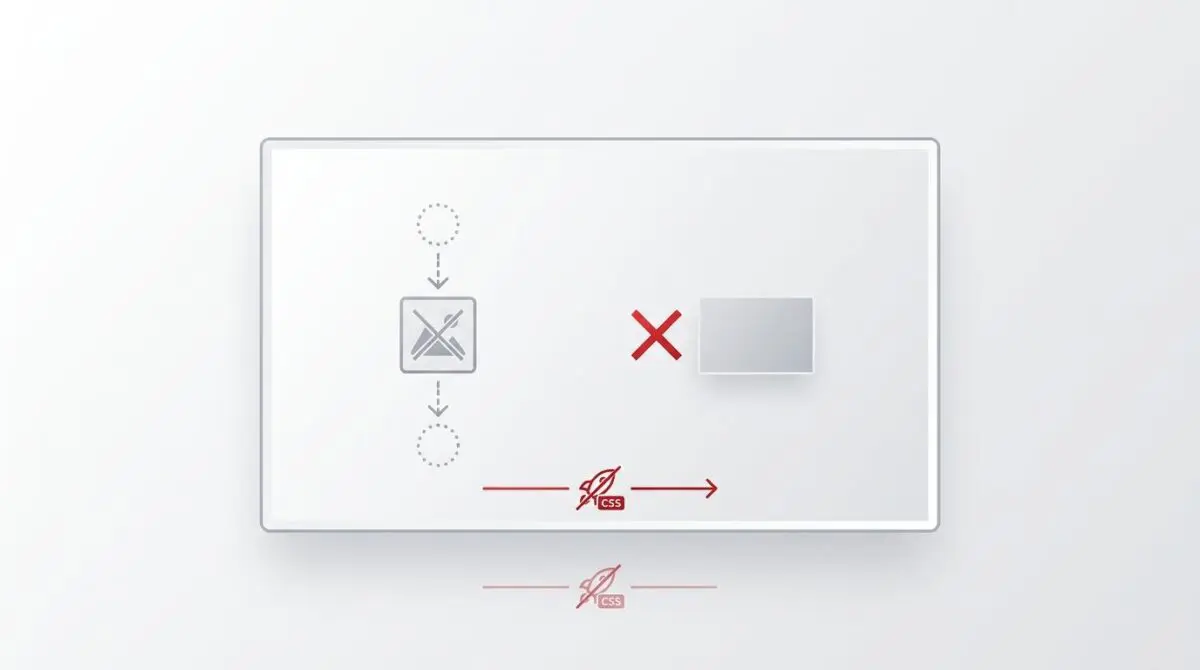
This forces the rendering engine to wait until the CSS payload is fully downloaded and parsed. Only after the CSS Object Model (CSSOM) is constructed can the browser discover the image URL and initiate the fetch request. In the context of Generative Engine Optimization (GEO) and Crawl Budget, a delayed LCP indicates a critically poor Page Experience signal.
Google’s rendering engine, the Web Rendering Service (WRS) powered by a headless Chromium architecture, utilizes these performance metrics to prioritize indexing depth. Slow-loading visual assets can lead to the rendering engine timing out before the full content layout is realized. This potentially results in incomplete indexing of key structural elements or a lower quality score that reduces overall crawl frequency.
When Googlebot encounters a page that requires extensive rendering time, it may abandon the execution queue. This means your JavaScript-heavy elements or deeply nested DOM structures might never be fully processed. Fixing the CSS background issue is not just about user experience; it is a fundamental requirement for indexation integrity.
Diagnostic Checkpoints: Identifying the Desynchronization
This specific rendering error typically manifests as a severe desynchronization within the application stack. You will often see Google Search Console flag an LCP issue longer than 2.5 seconds on mobile devices. Raw server logs may also show a significantly delayed GET request for the hero image asset relative to the initial HTML document request.
Diagnostic Checkpoints
Preload Scanner Invisibility
Scanner cannot detect URLs hidden inside external CSS files.
Render-Blocking CSSOM
Browser waits for CSSOM construction before initiating fetch.
Missing Fetch Priority
CSS-based images default to non-critical low priority queues.
CSS Specificity and Media Queries
Viewport evaluation must precede image discovery and download.
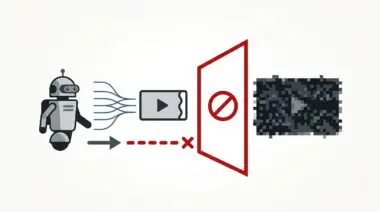
Understanding the root causes requires analyzing the interaction between the server layer and the browser’s parsing engine. Modern browsers utilize an advanced mechanism to scan for critical resources early in the page lifecycle. However, assets hidden inside external stylesheets remain completely invisible to the browser’s Preload Scanner.
The scanner simply cannot detect the URL until the CSS payload is retrieved and processed by the main thread. This is highly prevalent in WordPress environments using Customizer CSS or popular Page Builders like Elementor and Divi. These tools often inject background image paths into dynamically generated internal or external stylesheets rather than the raw HTML source.
Furthermore, the browser must build the entire CSS Object Model before it can determine which CSS rule applies to which specific DOM element. If the LCP asset is a background image, the fetch request is queued at a much lower priority until the CSSOM is fully ready. Plugins that concatenate CSS files into one large asset severely delay the discovery of the specific background image needed for above-the-fold content.
When LCP images are defined within complex media queries, the browser faces an additional calculation burden. It cannot pre-calculate which image will be needed until it evaluates the viewport constraints against the device screen size. Responsive image features in modern frameworks often generate multiple CSS rules for background images, preventing simple preloading without implementing complex logic.
Additionally, the browser’s main thread often becomes congested with synchronous JavaScript execution during the initial page load. When the main thread is blocked, the construction of the CSSOM is further delayed, creating a compounding bottleneck for CSS-defined assets. Even with HTTP/2 multiplexing, the browser cannot request an asset it does not know exists. This fundamental limitation of the rendering path is why CSS backgrounds are inherently hostile to Core Web Vitals optimization.
The Engineering Resolution: Bypassing the CSSOM
Resolving this bottleneck requires manual intervention to elevate the asset’s priority in the network queue. You must explicitly instruct the browser to fetch the image during the initial HTML parsing phase.
Engineering Resolution Roadmap
Identify LCP Resource URL
Open Chrome DevTools, go to the ‘Performance’ tab, record a page load, and find the LCP entry in the ‘Timings’ track. Note the exact URL of the background image.
Implement HTML Preload Hint
Add a <link rel=’preload’> tag to the <head> of your document. Ensure you include fetchpriority=’high’ to elevate its position in the network queue.
Apply Server-Side Link Headers
Configure NGINX or .htaccess to send a ‘Link’ header for the LCP image. This allows the browser to begin the download during the initial HTTP handshake before the HTML body is even parsed.
Bypass Caching Plugins for LCP
In WP Rocket or Autoptimize settings, exclude the LCP background image URL from lazy-loading and ensure the preload tag is not moved to the footer.
The most effective method involves implementing an explicit HTML preload hint directly in the document head. This bypasses the CSSOM dependency entirely and forces the browser to initiate the download immediately. You must include fetchpriority=’high’ to elevate its position in the network queue.
Without a high-priority signal, the browser may prioritize other assets like render-blocking scripts or non-critical images ahead of the LCP background image. WordPress Core’s native lazy-loading does not apply to CSS backgrounds, leaving them vulnerable to late discovery. Third-party optimization plugins also frequently fail to identify CSS backgrounds for automated priority assignment.
By injecting the preload hint, you effectively decouple the image download from the CSS parsing phase. The browser can fetch the heavy image file in parallel with the stylesheet, drastically reducing the overall critical rendering path. This parallelization is the cornerstone of modern web performance engineering.
It is crucial to understand the distinction between preloading and prefetching when implementing this fix. A prefetch directive tells the browser to download an asset for a future navigation event, assigning it the lowest possible priority. Preloading, specifically with the correct fetch priority attribute, demands immediate action for the current page rendering cycle. Using the wrong link relation will completely negate the optimization effort and leave your LCP metric severely degraded.
Resolution Execution: Server and Application Layer Fixes
To execute this fix at the server or application level, you need to implement both HTML hints and HTTP headers. The combination of these two techniques ensures that the asset is prioritized regardless of the client’s parsing speed. Below is the exact implementation required for a typical WordPress and NGINX stack.
Fixing via WordPress and NGINX
You must inject the preload link into the document head before any CSS files are called. Additionally, configuring the NGINX server to send an early Link header allows the browser to begin the download during the initial HTTP handshake.
<!-- Add this to the <head> of your WordPress header.php or via a Hook -->
<link rel="preload" as="image" href="/wp-content/uploads/hero-bg.jpg" fetchpriority="high">

# NGINX Configuration for Edge-level Preloading
location / {
    add_header Link "<https://example.com/wp-content/uploads/hero-bg.jpg>; rel=preload; as=image";
}
After implementing the code, you must configure your caching plugins to respect the new prioritization. In WP Rocket or Autoptimize settings, explicitly exclude the LCP background image URL from any lazy-loading features. You must also ensure that the optimization plugin does not mistakenly move the preload tag to the document footer during HTML minification.
If you are utilizing a Content Delivery Network, ensure that the CDN respects the origin server’s Link headers. Some aggressive caching configurations will strip these headers before they reach the client. You may need to configure a specific page rule to preserve the preload directives for your HTML documents.
After applying the NGINX configuration and HTML modifications, you must systematically purge all caching layers. This includes object caches like Redis or Memcached, as well as full-page caching solutions like Varnish. Failing to clear these intermediate caches will result in stale HTML documents being served to Googlebot, masking the successful implementation of your preload directives.
Deep Dive: Market Intelligence and Core Web Vitals
Understanding the broader impact of this issue requires looking at industry-wide performance metrics. The HTTP Archive’s State of the Web report provides critical context on how CSS backgrounds impact global Core Web Vitals. Optimizing this specific metric is no longer optional for competitive search visibility.
Search engines are increasingly relying on real-world user experience data, gathered via the Chrome User Experience Report (CrUX), to inform their ranking algorithms. A slow LCP not only frustrates users but also signals to Googlebot that the page architecture is poorly optimized. This directly impacts your overall crawl budget and the frequency at which your site is indexed.
When your server architecture fails to deliver assets efficiently, you are essentially wasting Google’s compute resources. The search engine will penalize this inefficiency by reducing your crawl rate limit. Ensuring that your LCP asset loads instantly is a direct investment in your technical SEO foundation.
Validation Protocol & Edge Cases
Once the fix is deployed, rigorous validation is required to ensure the asset is actually being prioritized. You cannot rely solely on Lighthouse scores; you must inspect the raw network waterfall.
Validation Protocol
- Run the ‘Rich Result Test’ or GSC ‘Live Test’ to verify correct image rendering.
- Verify Network Tab shows ‘High’ Priority and ‘link’ Initiator.
- Confirm waterfall chart shows immediate download after HTML document.
Open Chrome DevTools and navigate to the Network tab to monitor the loading sequence. Filter for image assets and check the Priority column to ensure it registers as High. The Initiator column should clearly indicate that the request originated from the link rel=preload directive.
Run a WebPageTest.org scan and inspect the Waterfall Chart for visual confirmation. You should see the image download start immediately after the initial HTML document is received. If the download is still delayed, you may be facing an edge case involving your edge caching layer.
In a Headless WordPress setup using a CDN like Cloudflare, an Edge Worker might be configured to strip custom headers. Even if your NGINX origin server sends a preload Link header, the Edge Worker could normalize the response and remove it. This causes the LCP image to revert to late-discovery despite the origin-level fix.
To resolve this, you must audit your Edge Worker scripts and ensure that Link headers are explicitly passed through to the client. You can also utilize Cloudflare’s Early Hints feature to push the preload directive even faster. Early Hints send a 103 status code to the browser before the 200 OK response, maximizing download parallelization.
Autonomous Monitoring & Prevention
Preventing performance regressions requires integrating automated checks into your deployment pipeline. Implement a Continuous Integration and Continuous Deployment (CI/CD) automated test using Lighthouse CI. This allows you to check for Preload LCP Image warnings before every production release.
This ensures that new marketing assets or theme updates do not inadvertently introduce CSS background bottlenecks. Use server log analysis tools like the ELK stack to monitor the Time to First Byte against the Image Download Start time. The delta between these two metrics should consistently remain under 200 milliseconds.
If the gap widens, it indicates that a new stylesheet, JavaScript bundle, or plugin is blocking the preload scanner. Managing these complex technical SEO variables requires a proactive, engineering-first approach. Custom API alerts and automated pipelines can notify your team the moment an entity integrity issue arises.
Andres SEO Expert utilizes these exact methodologies to monitor and protect enterprise-level server architectures. By leveraging automation, you can maintain pristine Core Web Vitals scores without manual daily audits. This frees up your engineering resources to focus on feature development rather than constant troubleshooting.
Conclusion
Resolving CSS-defined LCP bottlenecks is a fundamental requirement for maximizing AI search visibility and crawl efficiency. By moving asset discovery from the CSSOM phase to the initial HTML parse, you drastically reduce render times. Implement the server-side headers and HTML hints outlined above to permanently eliminate this performance penalty.
Navigating the intersection of technical SEO, server architecture, and generative search requires a precise roadmap. If you need to future-proof your enterprise stack, resolve deep-level crawl anomalies, or implement AI-driven SEO automation, connect with Andres at Andres SEO Expert.